
Blog article
Undo almost anything in Git: restore, reset or revert?
The right Git undo depends on one thing: where the change is now. Discard edits, unstage files, undo local and pushed commits, and recover lost work with git restore, reset, revert and reflog.
On this page10 sections
Every Git user eventually types a command and immediately wishes they had not: an edit that wiped a file, a file you never meant to add, a commit that should not exist, or one you already pushed. Search for help and you will find checkout, reset, restore, revert and reflog, often with conflicting advice.
There is a simple way through it. The right undo depends on one thing: where the change is now. Still in your file, staged, in a local commit, or already pushed. This guide takes one small project through every case, with the real output of each command.
Set up a practice repository
A new folder with one file, report.sql, and one commit. Every example below continues from the previous one and shows every command, so you can type along and get the same results.
mkdir undo-practice
cd undo-practice
git init -b main
echo "SELECT OrderID FROM dbo.Orders;" > report.sql
git add report.sql
git commit -m "Add report"$ mkdir undo-practice
$ cd undo-practice
$ git init -b main
Initialized empty Git repository in /home/sam/undo-practice/.git/
$ echo "SELECT OrderID FROM dbo.Orders;" > report.sql
$ git add report.sql
$ git commit -m "Add report"
[main (root-commit) 09248da] Add report
1 file changed, 1 insertion(+)
create mode 100644 report.sqlFirst, find where the change is
Git saves a change in steps. You edit a file in your working folder, git add copies it to the staging area, git commit saves it in a commit, and git push shares that commit with others. Each step has its own undo, and using one meant for another step either does nothing or does too much.
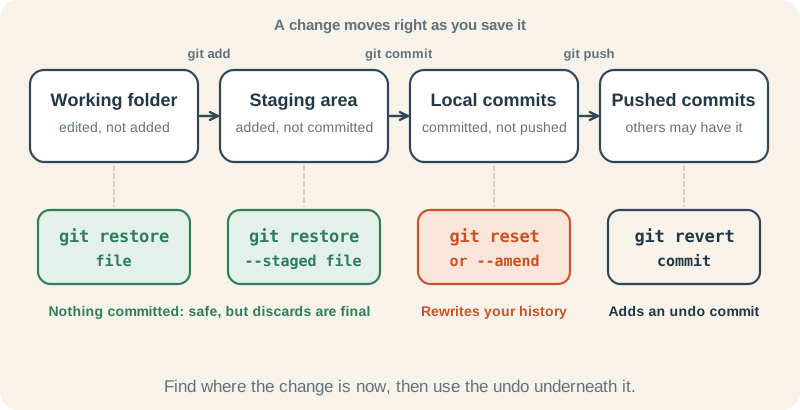
git status --short tells you where you are. Each file gets two status columns: the left one is the staging area and the right one is your working folder. An M in the left column means the change is staged; an M in the right column means it is changed but not staged. A is a new file that is staged, and ?? is a file Git does not track yet.
1. Throw away an edit: git restore
You meant to change one line of report.sql and replaced the whole query with a DELETE instead (the echo line below makes that mistake for you). Nothing has been added or committed.
Look, then discard the edit
git diff shows exactly what you are about to lose. git restore copies the version in the staging area back over the file. Nothing was staged, so that is the last committed version, and git status is clean again.
echo "DELETE FROM dbo.Orders;" > report.sql
git status --short
git diff
git restore report.sql
git status --short
cat report.sql$ echo "DELETE FROM dbo.Orders;" > report.sql
$ git status --short
M report.sql
$ git diff
diff --git a/report.sql b/report.sql
index 34fdfe7..c1ea614 100644
--- a/report.sql
+++ b/report.sql
@@ -1 +1 @@
-SELECT OrderID FROM dbo.Orders;
+DELETE FROM dbo.Orders;
$ git restore report.sql
$ git status --short
$ cat report.sql
SELECT OrderID FROM dbo.Orders;2. Unstage a file: git restore --staged
You fix the query to show completed orders, and create a local config.ini holding a password. Then you run git add . to stage the fix, which stages config.ini too. It must never be committed.
Take one file out of the next commit
A means config.ini was staged as a new file. After git restore --staged it is back to ??, untracked, and only report.sql will go into the commit. Your edit to the file is not touched.
echo "SELECT OrderID FROM dbo.Orders WHERE OrderStatus = 'Completed';" > report.sql
echo "password=letmein" > config.ini
git add .
git status --short
git restore --staged config.ini
git status --short$ echo "SELECT OrderID FROM dbo.Orders WHERE OrderStatus = 'Completed';" > report.sql
$ echo "password=letmein" > config.ini
$ git add .
$ git status --short
A config.ini
M report.sql
$ git restore --staged config.ini
$ git status --short
M report.sql
?? config.iniCommit the fix
Only report.sql is committed. The log now has two commits.
git commit -m "Show completed orders only"
git log --oneline$ git commit -m "Show completed orders only"
[main ea7fd2a] Show completed orders only
1 file changed, 1 insertion(+), 1 deletion(-)
$ git log --oneline
ea7fd2a Show completed orders only
09248da Add report3. Undo a local commit: git reset
As long as a commit is only on your computer, you can take it back. git reset HEAD~1 moves your branch back one commit (HEAD~1 means “one commit before where you are”). What happens to the changes inside that commit depends on the mode.
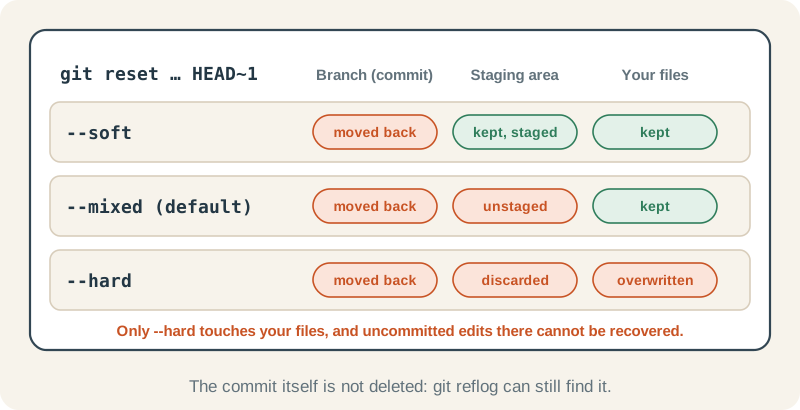
--soft: undo the commit, keep everything staged
Use --soft when the commit was premature: you want to take it back but keep the work staged, then add to it or commit it again. After --soft the commit is gone from the log and the change is still staged (M in the left column). Here we only commit it again with a clearer message; for a message alone, git commit --amend is quicker (see below).
git reset --soft HEAD~1
git log --oneline
git status --short$ git reset --soft HEAD~1
$ git log --oneline
09248da Add report
$ git status --short
M report.sql
?? config.iniCommit again with a better message
Same change, new commit, new ID.
git commit -m "Show completed orders"
git log --oneline$ git commit -m "Show completed orders"
[main d4f0863] Show completed orders
1 file changed, 1 insertion(+), 1 deletion(-)
$ git log --oneline
d4f0863 Show completed orders
09248da Add report--mixed (the default): undo the commit and unstage
With no mode, git reset uses --mixed. The change is back in your file but no longer staged (M now in the right column), so you can edit more before committing. Here we simply commit it again.
git reset HEAD~1
git status --short$ git reset HEAD~1
Unstaged changes after reset:
M report.sql
$ git status --short
M report.sql
?? config.iniCommit it again
-a stages every tracked file that changed, then commits. config.ini is untracked, so it is still left out.
git commit -am "Show completed orders"
git log --oneline$ git commit -am "Show completed orders"
[main 3c4ade7] Show completed orders
1 file changed, 1 insertion(+), 1 deletion(-)
$ git log --oneline
3c4ade7 Show completed orders
09248da Add reportIf all you need is to fix the last commit’s message, or add a file you forgot, git commit --amend is quicker: it replaces the last commit in one step. Undo and recovery shows it with real output.
4. Throw a commit away: git reset --hard
You point the report at a different table, commit it, and decide it was a dead end. You want it gone completely: the commit and its change to report.sql.
Make the experiment
Three commits now. The newest one is the one to throw away.
echo "SELECT * FROM dbo.OrderItems;" > report.sql
git commit -am "Try a different table"
git log --oneline$ echo "SELECT * FROM dbo.OrderItems;" > report.sql
$ git commit -am "Try a different table"
[main fa63117] Try a different table
1 file changed, 1 insertion(+), 1 deletion(-)
$ git log --oneline
fa63117 Try a different table
3c4ade7 Show completed orders
09248da Add reportReset hard
HEAD is now at … confirms where the branch now points. The experiment is gone from the log, and report.sql is back to the version in “Show completed orders”.
git reset --hard HEAD~1
git log --oneline
cat report.sql$ git reset --hard HEAD~1
HEAD is now at 3c4ade7 Show completed orders
$ git log --oneline
3c4ade7 Show completed orders
09248da Add report
$ cat report.sql
SELECT OrderID FROM dbo.Orders WHERE OrderStatus = 'Completed';5. Get a lost commit back: git reflog
Next morning you want the experiment after all. It is no longer in git log, but Git has not deleted it yet. git reflog lists every place your branch has recently pointed, including commits that log no longer shows.
Find the commit and give it a branch
HEAD@{1} means “where HEAD was one move ago”: just before the reset. Creating a branch there brings the commit back into view, while main stays as it is.
git reflog -3
git branch experiment HEAD@{1}
git log --oneline experiment -1$ git reflog -3
3c4ade7 HEAD@{0}: reset: moving to HEAD~1
fa63117 HEAD@{1}: commit: Try a different table
3c4ade7 HEAD@{2}: commit: Show completed orders
$ git branch experiment HEAD@{1}
$ git log --oneline experiment -1
fa63117 Try a different table6. Undo a pushed commit: git revert
Suppose “Show completed orders” was pushed yesterday, a teammate pulled it, and now the team wants every order back in the report. Resetting would remove a commit your teammate already has, and the histories would no longer match. Instead, make a new commit that does the opposite.
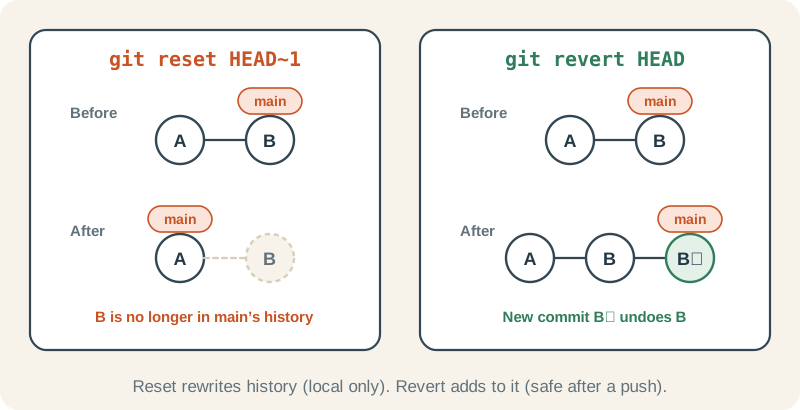
Revert the latest commit
--no-edit accepts Git’s default message. The original commit stays in the log, the new commit undoes it, and report.sql is back to the original query. Push it as normal: no force push needed. Git may also print a Date: line, as here.
git revert --no-edit HEAD
git log --oneline
cat report.sql$ git revert --no-edit HEAD
[main 0aca4b7] Revert "Show completed orders"
Date: Fri Oct 30 10:36:00 2026 +0000
1 file changed, 1 insertion(+), 1 deletion(-)
$ git log --oneline
0aca4b7 Revert "Show completed orders"
3c4ade7 Show completed orders
09248da Add report
$ cat report.sql
SELECT OrderID FROM dbo.Orders;To revert an older commit, pass its ID instead of HEAD: git revert <commit-id>, using an ID from git log --oneline. If later commits changed the same lines, Git stops and asks you to resolve a conflict before it finishes the revert.
The whole guide in one table
| Where the change is | You want to | Command |
|---|---|---|
| Working folder | Discard the edit | git restore file |
| Staging area | Unstage, keep the edit | git restore --staged file |
| Last commit, not pushed | Fix the message or add a file | git commit --amend |
| Commit, not pushed | Undo it, keep the changes | git reset --soft HEAD~1 (or --mixed) |
| Commit, not pushed | Undo it and discard the changes | git reset --hard HEAD~1 |
| Pushed commit | Undo it for everyone | git revert commit |
| Commit you “lost” | Find it again | git reflog |
Check yourself
You ran git add . and it staged a 2 GB data export you did not mean to commit. You have not committed. What do you run?
Reveal answer
git restore --staged export.csv (with your file name). The file stays in your folder, just out of the next commit. Then add it to .gitignore.
Your last commit has a typo in its message and you have not pushed. Which command is quickest?
Reveal answer
git commit --amend -m "New message". It replaces the last commit. git reset --soft HEAD~1 and committing again also works, in two steps.
A commit you pushed last week broke a report. Two teammates have pulled since. How do you undo it?
Reveal answer
git revert with that commit’s ID, then push. It adds an undo commit on top, so nobody’s history is rewritten and everyone can simply pull.
You ran git reset --hard HEAD~1 and lost a commit you needed. Is it gone?
Reveal answer
Probably not. Run git reflog, find the commit, and run git branch rescue <id> (or git reset --hard <id> to move your branch back to it). What --hard really loses is uncommitted edits, which the reflog never saw.
Where to go next
The Git roadmap covers each of these in more depth:
- Undo and recovery: restore, amend, revert and the reflog, step by step
- Inspecting changes: read
git statusandgit diffwith confidence before you undo anything - Clean up commit history: interactive rebase, squash and reorder to tidy local commits
- Troubleshooting: detached HEAD, lost commits and conflicts, diagnosed step by step