
Relational foundations
Set up a safe SQL Server practice environment and sample database
Install the shared practice dataset in a disposable SQL Server instance and verify its seeded data.
Lesson 5 of 84
Reading: about 4 min
Lesson + practice: about 25 min
Difficulty: Beginner
On this page3 sections
This course uses the shared DDI_SQL_Training practice dataset. This lesson uses dataset version 1.0.0. The same eight tables and seed records are used throughout the roadmap. Use a separate SQL Server 2019 or later instance intended only for practice, with SQL Server Management Studio or another editor that supports SQL Server batches.
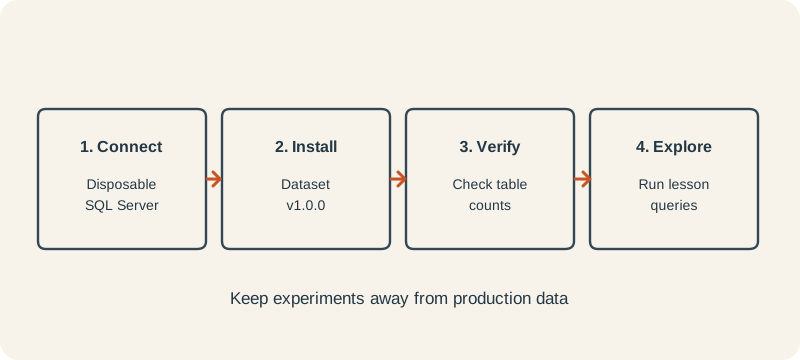
Before you run the script
You need a SQL Server Database Engine instance reserved for practice and a compatible SQL editor. SQL Server Management Studio (SSMS) is an editor; installing it alone does not install the database engine. If you need either program, follow Microsoft's SQL Server installation guide and SSMS installation guide. Use an account that can create a database and its tables on that disposable instance.
Confirm that the connection is to your own disposable teaching instance. The setup script creates DDI_SQL_Training if it does not exist. On a later run, it replaces the eight canonical tables only in a database marked with the matching DDI dataset version; it refuses an unmarked database containing user tables or a different dataset version.
Download the DDI SQL Server practice dataset v1.0.0 script. Then follow these steps:
- Open SSMS and connect to the Database Engine instance reserved for practice. Enter that instance's server name and use the authentication configured for it.
- Before running anything, check the connected server name in Object Explorer. If it is not clearly your disposable practice instance, stop and correct the connection.
- Open the downloaded .sql file in a query window attached to that verified instance. Run the entire file, including its GO batch separators; do not run only a selected part.
- Confirm that execution ends without an error. The script's final result should show DDI_SQL_Training, version 1.0.0, 5,000 orders, 10,000 order items, and 2,500 payments. If it fails or shows different values, stop and investigate the connection and error before trying again.
Verify the installation
After the setup succeeds, run this query in your editor. If your editor uses another database by default, the USE statement selects the training database first. GO is a batch separator understood by tools such as SSMS; it is not a T-SQL statement.
USE [DDI_SQL_Training];
GO
SELECT DB_NAME() AS CurrentDatabase,
       (SELECT COUNT(*) FROM dbo.Customers) AS CustomerCount,
(SELECT COUNT(*) FROM dbo.Orders) AS OrderCount;| CurrentDatabase | CustomerCount | OrderCount |
|---|---|---|
| DDI_SQL_Training | 20 | 5000 |
These checks confirm the expected database and two table counts. The unmodified v1.0.0 dataset has four departments, twelve employees, five categories, fifteen products, twenty customers, 5,000 orders, 10,000 order items, and 2,500 payments. The setup script verifies all eight counts and payment totals before it completes.
Reset after experiments
Some later exercises use transaction rollback or temporary or copied data. If you intentionally modify the canonical training tables, first confirm that you are connected to the separate SQL Server instance intended only for practice. Check the server name in SSMS, then verify that DDI_SQL_Training is the database you intend to reset; the setup script selects its target database even if a different database is selected in the query window. To reset the training data, rerun the entire approved setup script. It recreates the canonical training tables and restores the seeded records; it is not a backup for unrelated data. In SSMS, make sure the entire setup script is executed. If only part of the script is selected, SSMS executes only the selected statements.
Your progress
Reveal the check answer or reach the end to complete this lesson.